
April 9th, 2025
At the first step of the MigrateMyCRM wizard, you'll be prompted to connect your source and target CRMs.
🔒 Security & Compliance
-
Your CRM connections are secure and fully ISO/GDPR compliant.
-
The SyncMatters team cannot access your CRM interface using the credentials you provide.
🔑 API Tokens
-
If your source CRM requires an API token (e.g., Pipedrive or Freshsales), keep in mind:
-
These tokens are necessary for each CRM user to migrate their Emails and Attachments.
-
If only one token is provided, the migration will proceed, but only that user's correspondence will be transferred.
-
✅ User Permissions
-
Ensure the user accounts used for CRM connection have sufficient permissions to read and write all data to be migrated.
-
Typically, a System Admin or Super Admin role works best.
Choose How to Proceed After Connecting
Once your CRMs are connected, you have two options:
🔄 Start Quick Sample
Launches an immediate test migration using default settings. Please note:
-
Some system and custom fields may not be mapped.
-
Matching of objects except User account will be skipped.
-
Data filters won’t be applied.
See a video tutorial about the Quick Sample option
After the Quick Sample is complete, you can re-run the migration as many times as needed, adjusting Object selection, Field mappings, and User matching
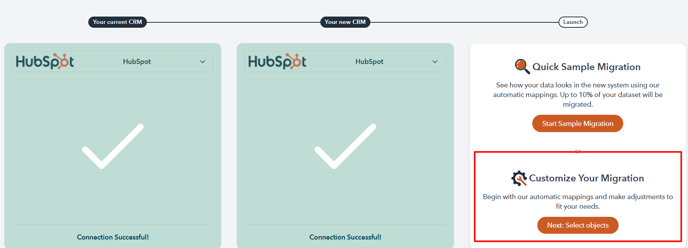
⚙️ Customize Your Migration
This option gives you full control over the migration process and results. We recommend customizing your mapping particularly in the following cases:
- You’re performing a partial migration (e.g., only activities or files).
- Your source or target CRM contains custom objects.
- You want to apply filters to your data.
- Your target portal already contains data that might overlap with records from your source CRM.
See a video tutorial about the Customize Your Mapping option